
Video Link : https://youtu.be/wmsJY2-1kK8
Go to "My Store". Navigate to "Templates".

Click on "Customize".

Go to "Home Page"

Navigate to "Theme Settings" on the left bottom.

1. Typography
Go to "Typography".

Heading Font
Now select the font for headings on the home page.

Click on the triangle button and select the font you want.

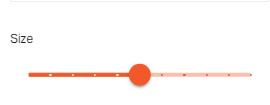
Use the slide bar to select the font size for headings.
Select the font style from the options as shown below.

Body Text Font
Now select the font for body text just as the heading font.

Select the font weight for body text from the given options shown below.


Button Style
Adjust the button radius using the slide bar shown below.
Adjust the button spacing using the slider from top and bottom on the home page.
Adjust the button spacing using the slider from left and right on the home page.

Choose the button font style from the given options.

Now click on the back button to go back to the other sections.

2. Colors
Go to "Colors".

You can select the text colors for headings and body text.
Click on the color box you see in front (headings and body text).

Select the color box to apply your preferred color.
Use the slide bars to adjust the color intensity.

Button Colors
Click on the color box.

Select the color box to apply your preferred color.
Use the slide bars to adjust the color intensity.

Click on the color box.

Select the color box to apply your preferred color.
Use the slide bars to adjust the color intensity.

Click on the color box.

Select the color box to apply your preferred color.
Use the slide bars to adjust the color intensity.

Click on the color box

Select the color box to apply your preferred color.
Use the slide bars to adjust the color intensity.

Click on the color box

Select the color box to apply your preferred color to the overlay.
Use the slide bars to adjust the color intensity.
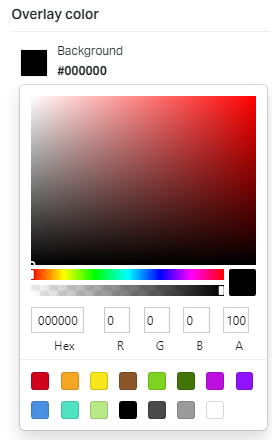
You can use the slide bar to set the opacity level (the degree to which content behind an element is hidden)

Now click on the back button to go back to the other sections.

2. Share Buttons
Share your products on social media channels using these buttons.
Go to "Share buttons".

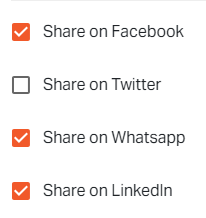
Select the share buttons for different social media channels where you want to share your products.
Click on the "Save" button.

Now click on the back button to go back to the other sections.

3. Social Links
Let your customers reach you on social media sites through this section.


Click on the "Save" button.

Now click on the back button to go back to the other sections.

4. Favicon
A favicon image is displayed on the web browser to represent a webpage.

Click on "Change."

Go to "Upload New.".

Select the image you uploaded.
Click on "Done".

Click on the "Save" button.
If you still can't find an answer to what you're looking for, or you have a specific question, open a new ticket and we'd be happy to help!
Contact Us