
Go to" Discount" on the admin panel and click on the "Create discount" button.


Percentage: The customer gets a certain percentage off of the product price.For example, 60% off on Rs. 135 (product price) So the customer will be charged Rs. 54.
Fixed amount: The user gets a certain fixed monetary amount off the product price.For example, a Rs. 60 discount on a product price of Rs. 135. The user will pay Rs. 75.


If you have selected a fixed amount type, then here you will enter the exact amount of the discount.

All products: You can apply the discount code created to all products available in the store.
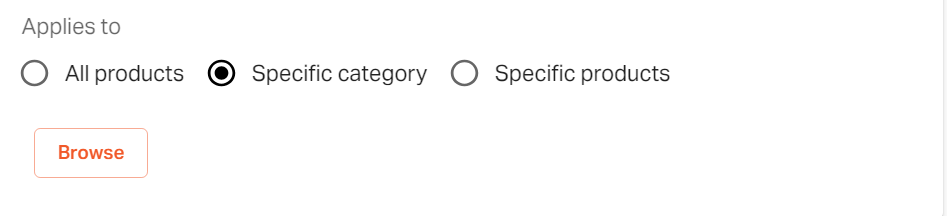
Specific category: You can choose to apply the discount code to a specific category of the products that you created.
Select the specific category and click on the "Browse" button.
Search for the preferred category name, or you can select from the list as shown.
Now click on the "Add" button.

Select the "specific products" option. Now click on the "Browse" button.

Search the product in the search bar, or you can select the products from the list as shown and click on "Add" button.

None: No purchase condition is set.
Minimum purchase amount :Set a particular purchase amount for the customers to avail of the discount.Enter the purchase amount in the box as shown.

Minimum Quantity of Items: Set a particular quantity of items to buy for the customers to avail of the discount.Enter the quantity in the box as shown.

All - Select if the discount code is available to all the customers.
Specific customers - select the specific customers who are eligible to avail the discount offer.
Select "specific customers" and click on the "Browse" button.

Select the customers from the list as shown, or you can search for the preferred customers from the search bar on top.Click on save.

You can set the usage limits of the discount codes for customers.
You can enter the number of times this discount code can be used.
You can select the second option if you allow the single user to avail the offer for only once.
Leave the second option unchecked if you allow the single user to avail the offer for given number of times.
Note- You can select one or both the options at one time.

Leave the "Set end date" unchecked if you do not want to set it. You can do it later when you want.

Click on the "Save" button.
Your discount code has been created now.

If you still can't find an answer to what you're looking for, or you have a specific question, open a new ticket and we'd be happy to help!
Contact Us